
February 28, 2026
Create a Better Instruction Manual Template That Actually Works
Tired of confusing guides? Learn how to create an instruction manual template that cuts down on support tickets and helps users succeed.
An instruction manual template isn't just a pre-made document. It's a standardized structure for creating every user guide and standard operating procedure (SOP) your business produces. A good one saves you from staring at a blank page every time you need to explain how something works, ensuring everything you publish is consistent, clear, and professional.
Why a Great Instruction Manual Template Is a Business Asset
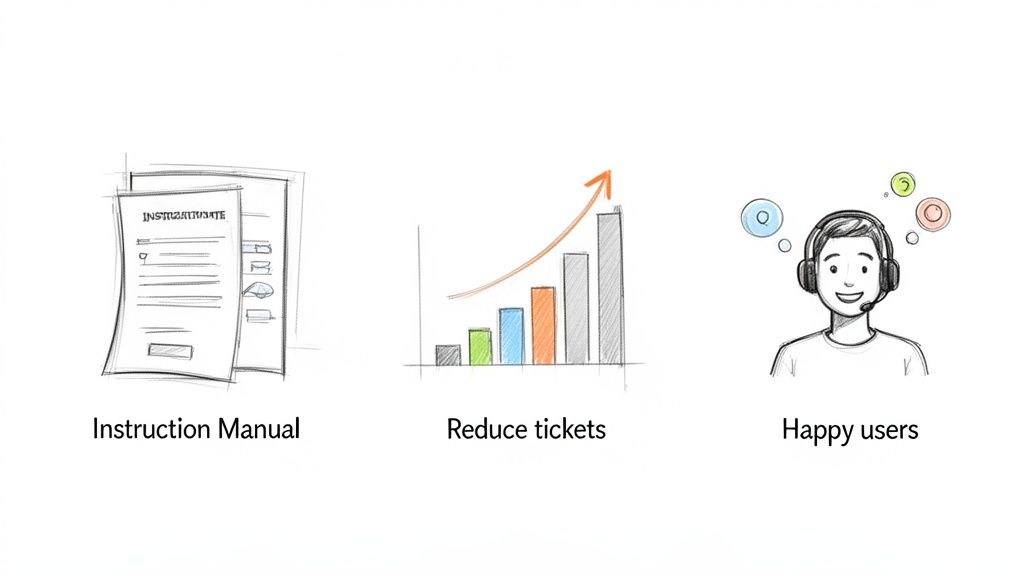
Let's be honest: most instruction manuals feel like an afterthought. They're often dense, confusing, and outdated the moment they go live. But what if your guides could actively cut down on support tickets and make customers happier?
When you start seeing instruction manuals as a business asset instead of a boring necessity, everything changes. Bad documentation has real costs. For a SaaS company, it can drive up churn when frustrated users give up and leave. For your internal teams, it means messy training and inconsistent work.
A well-designed instruction manual template isn't just about making things look nice; it's about saving time, cutting costs, and keeping your users from getting frustrated. It shifts your support model from reactive to proactive.
The Tangible Business Impact
Think about the ripple effect of great documentation. When a customer finds their answer in a clear guide, they don’t file a support ticket. That frees up your support team to focus on more complex problems, improving service for everyone.
Internally, clear SOPs mean everyone follows the same steps, which leads to fewer errors and better efficiency. To really see how deep this goes, you can explore the many benefits of standard operating procedures.
Here’s where a solid instruction manual template really proves its worth. It creates a scalable system for producing high-quality guides every single time. Products with top-tier user guides can boost customer adoption by 23% in the first 30 days.
For businesses like agencies and SaaS teams, that kind of smooth onboarding is invaluable. A well-structured template helps new users find their "aha!" moment 47% faster, which slashes the time-to-value and frees up your customer success team for more strategic work. You can find more data on user manual effectiveness over at Dewstack.com.
Let's take a quick look at the tangible benefits of investing in a well-structured instruction manual template.
| Business Impact of an Effective Instruction Manual Template |
| :--- | :--- |
| Business Area | Key Benefit | | Customer Support | Fewer Support Tickets: Users find answers independently, reducing ticket volume and freeing up agents. | | Onboarding & Training | Faster Time-to-Value: New users and employees get up to speed quicker with clear, consistent instructions. | | Product Adoption | Higher Engagement: Clear guides help users discover and use more features, leading to stickier products. | | Internal Operations | Reduced Errors: Standardized procedures ensure tasks are performed correctly and consistently every time. |
Ultimately, modern tools can take this a step further, turning what used to be static documents into interactive, AI-powered resources that directly improve your bottom line. They transform a tedious chore into a genuine strategic advantage, ensuring your knowledge is always current, accessible, and truly helpful.
Designing a User-Friendly Manual Structure
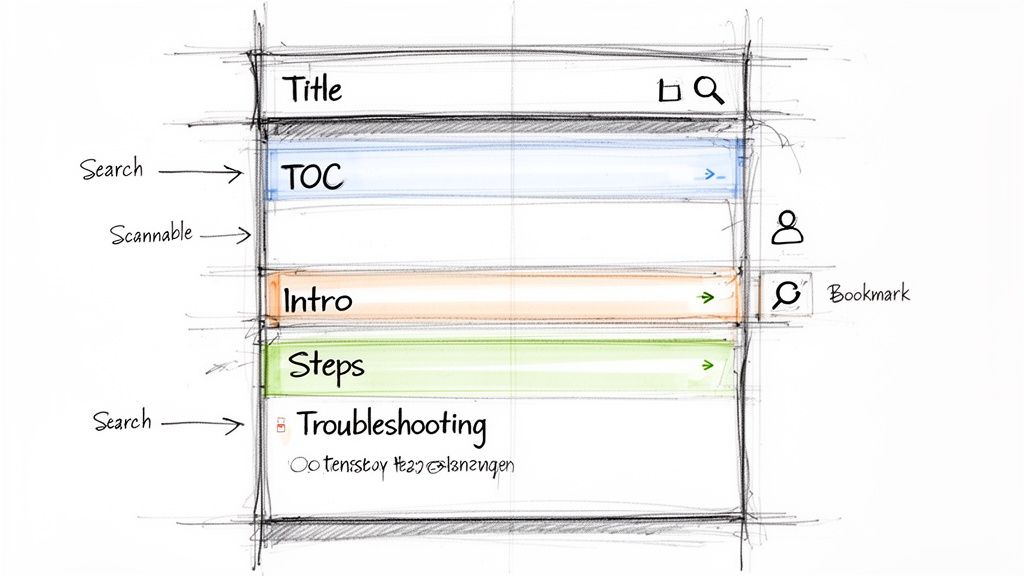
A great manual starts with a solid foundation. An effective template isn't just a collection of steps; it's a blueprint that guides the user from confusion to confidence. Without one, even the clearest instructions get lost in a sea of unorganized content.
This structure ensures every guide you create feels intuitive and familiar. By standardizing the core components, you create a predictable experience for your users, letting them find exactly what they need without having to guess where to look.
The Essential Components of Your Template
Every user-friendly instruction manual template should include a few non-negotiable sections. Think of these as the skeleton of your guide—they give it shape and purpose.
Title Page: This is your manual's first impression. It needs to clearly state the product or process name, any relevant version number, and the publication date. A clean, professional title page immediately establishes credibility.
Table of Contents (TOC): For any guide longer than a page or two, a clickable TOC is non-negotiable. It acts as a roadmap, allowing users to jump directly to the section they need. This is especially critical for troubleshooting or quick reference.
Introduction and Purpose: This section sets the stage. It briefly explains what the manual covers, who it's for, and what the user will be able to do after reading it. A strong purpose statement connects the guide to the user's real-world goals.
Core Instructions: This is the heart of your manual. It contains the step-by-step procedures, broken down into logical, bite-sized tasks. We’ll dive deeper into writing these instructions in a bit.
Troubleshooting or FAQ: A proactive troubleshooting section anticipates common problems and offers simple solutions. This single element can slash support tickets by solving issues before they escalate.
The most effective manuals anticipate user needs. A well-placed troubleshooting guide shows you understand your user's potential frustrations and have already prepared a solution, turning a moment of friction into a moment of relief.
Crafting a Purposeful Introduction
Your introduction is more than just a formality; it's your chance to orient the user and set clear expectations. You need to get straight to the point and answer the user’s unspoken question: “Is this worth my time?”
Avoid generic openings. Instead, directly address the user’s "why."
For example, instead of saying, "This manual explains how to use the software," try something more specific: "This guide will walk you through setting up your first client workspace in under 10 minutes, so you can start managing projects today." This small shift reframes the manual from a chore into a tool for achieving a goal.
If you want more guidance on organizing complex information and creating effective support materials, it’s worth learning more about how to write technical documentation.
Ultimately, your goal is to make the user feel capable and supported from the very first page. A logical structure provides the framework that makes this possible, ensuring your content is not only informative but genuinely helpful.
Writing Instructions That Are Clear and Accessible
A slick instruction manual template is a great start, but it's only half the job. The words inside are what actually make it work—or fail completely. Writing instructions that are clear, direct, and accessible to everyone isn't just a "nice to have." It's what separates a guide people love from one they ignore.
The core principle is simple: write for the user, not for yourself. This means dropping the technical jargon and insider language. Think about the last time you put together IKEA furniture; the confusing diagrams and vague steps probably made a simple task feel impossible. Your goal is to prevent that exact feeling.
Adopt an Action-Oriented Approach
Always use the active voice. Instead of saying, "The 'Save' button should be clicked," just write, "Click the 'Save' button." This tiny shift makes a huge difference. It puts the user in control and leaves no room for confusion about who is supposed to do what.
The other key is to break down big, complex processes into small, manageable steps. A user should only have to think about one single action at a time.
One Action, One Step: Each instruction should guide a single, verifiable action. "Enter your username" is a perfect example of a complete step.
Logical Flow: Arrange the steps in the exact order they need to be done. Don't make users jump around. That’s a fast track to frustration.
Consistent Terms: Use the same name for a button or feature every single time. Calling it the "Settings" menu in one spot and the "Configuration" panel somewhere else is a recipe for disaster.
For a deeper dive into these strategies, our guide on technical writing best practices is packed with valuable insights. Consistency is what builds a user’s confidence as they work through your manual.
Writing for Global Accessibility
Accessibility isn't a feature you tack on at the end; it's fundamental to good design. Your audience is likely to be diverse, with a wide range of technical skills, cultural backgrounds, and abilities. Writing accessibly makes sure your guide is genuinely helpful for everyone.
Remember that about 15% of the world's population lives with some form of disability. Clear, simple writing doesn't just benefit them—it helps every single user by lowering the mental effort needed to understand the instructions.
A great starting point is to write at a level that's easy for most adults to follow. Aiming for an 8th-grade reading level is a solid best practice. You should also steer clear of idioms, slang, or cultural jokes that might not translate well. A phrase like "it's a home run" might mean nothing to someone unfamiliar with baseball.
By focusing on simple language, active verbs, and a logical sequence, you turn a static document into a tool that empowers people. This thoughtful approach to writing is what separates a mediocre guide from a truly great one.
From Screen Recording to Visual Guide
Static screenshots are a staple in any instruction manual template, but let's be honest—they’re a huge pain to create and annotate one by one.
What if you could turn a quick screen recording into a polished, step-by-step visual guide in just a few minutes? This isn’t a futuristic idea anymore. It's how modern teams get documentation done without the headache.
This approach completely flips the script on creating instructional content. Instead of painstakingly capturing dozens of screenshots, editing them, and writing out every single description, you just record yourself doing the task. From there, the right tools take over, automatically converting your video into a series of clear, annotated screenshots complete with text.
For operations managers and distributed teams, this is a lifesaver. What was once a dreaded, tedious chore becomes a quick, almost effortless process. You capture the workflow once, and the software does all the heavy lifting.
How the Automated Workflow Works
The process is surprisingly simple. You just use a browser extension or desktop app to record your screen while you run through a task—say, setting up a new account or configuring a software setting. As you click and type, the tool captures every action.
Once you hit "stop," the magic happens. The software analyzes your recording and breaks it down into individual, easy-to-follow steps.
Screenshot Generation: It grabs a clean screenshot for each action you took.
Intelligent Cropping: The tool is smart enough to crop each screenshot to focus on what matters, like the button you clicked or the form field you filled out.
Automatic Annotation: It adds visual highlights, like colored boxes, to guide the user’s eye directly to the point of action.
Descriptive Text: AI generates a clear, concise description for each step, like "Click the 'Next' button" or "Enter your email address."
This automated output gives you an incredible first draft. You can then jump into a rich-text editor to fine-tune the wording, add extra notes, or even merge a few steps. It gives you total control to ensure the final guide is perfect for your audience.
And if you want to make the original screen recordings even more useful as a supplement, learning how to add subtitles to a video is a great next step for accessibility.
A Real-World Example: From Recording to Ready
Let's put this into a real scenario. Imagine an HR manager needs to create a guide showing new hires how to submit timesheets in the new payroll system. The old way would have been a multi-hour project involving endless screenshots and a clunky Word doc.
Instead, the manager just records the process, which takes all of two minutes.
The documentation tool instantly generates a step-by-step guide with 15 annotated screenshots and clear instructions. The manager spends another five minutes adding a couple of clarifying notes and a link to the company’s payroll policy. In less than ten minutes, a professional, easy-to-follow guide is published and ready to share.
The real win here is speed without sacrificing quality. We see teams document complex processes up to 80% faster than with traditional methods. That frees them up to focus on strategic work instead of getting bogged down in manual content creation.
This simple infographic sums up the principles behind creating instructions that actually work.
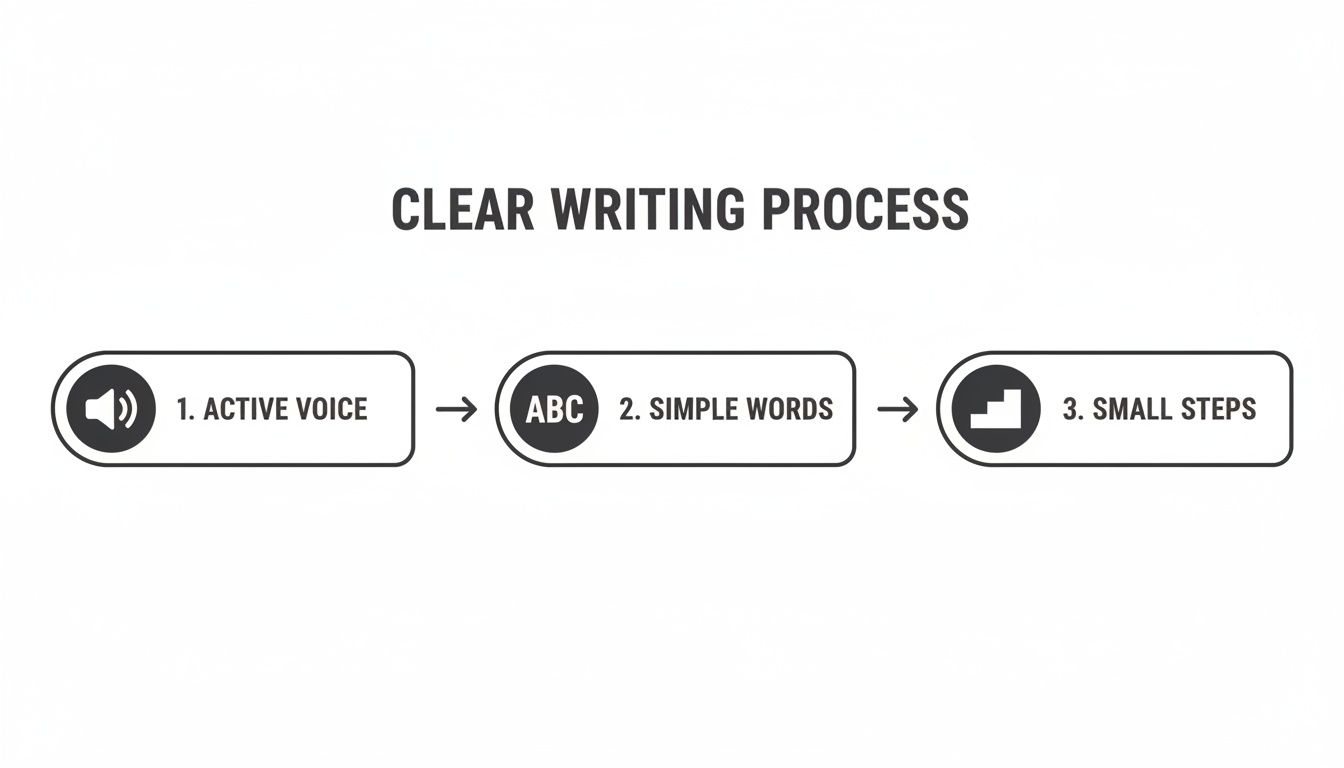
It highlights what we all know intuitively: effective instructions rely on active voice, simple language, and breaking things down into small, logical steps. If you want to dive deeper into this, our post on how to create a step-by-step guide covers it in more detail.
Ultimately, this method transforms a task everyone dreads into one that’s fast, simple, and effective.
Publishing and Maintaining Your Living Document
An instruction manual template is a great starting point, but its real power comes from treating the finished guide as a living thing.
The old way of doing things—exporting a static PDF and emailing it around—is fundamentally broken. That guide is outdated the moment you hit "save," creating a mess of confusion and inconsistency as your processes inevitably change.
The modern way is to publish your guides in a format that's dynamic, easy to find, and simple to update. Instead of getting buried in a shared drive, your guides should live where your team and customers can find them instantly.
Moving Beyond Static PDFs
Think of your instruction manual less like a printed book and more like a webpage that's always evolving. This shift in mindset completely changes how your documentation is used and maintained. The goal is to create a single source of truth that is always current.
Modern platforms like Build a Guide let you publish guides to a branded knowledge base or even a custom domain. This creates a professional, central hub for all your documentation, not just a folder of forgotten files.
You can also embed these guides directly where they’re needed most. For example:
In-App Help: Place a guide for a specific feature right next to that feature in your software. This gives users contextual help without forcing them to leave the app and hunt for answers.
Onboarding Flows: Integrate your SOPs directly into new hire or new customer checklists.
Project Management Tools: Link directly to a process guide from a task in Asana or Jira.
Fostering Real-Time Collaboration
A living document thrives on teamwork. When your product gets an update or an internal process shifts, your documentation needs to keep up. This is nearly impossible when your manual is a locked PDF sitting on someone’s hard drive.
A cloud-based system lets your team work together in real time. A product manager can update a guide to reflect a new feature, while a support agent simultaneously leaves a comment about a common customer question they’ve been getting.
This kind of collaborative environment lets you:
Co-edit guides with colleagues to ensure everything is accurate and complete.
Leave contextual feedback directly on specific steps that are unclear or outdated.
Update SOPs instantly as business processes change, making sure everyone is always working from the latest version.
Imagine a support agent spots an outdated screenshot in a customer-facing guide. Instead of filing a ticket and waiting weeks for a fix, they can tag the content owner directly in the document. The fix can be made and published in minutes, preventing any more customer confusion.
Using Analytics for Continuous Improvement
The final piece of maintaining a living document is understanding how it’s actually being used. Static files give you zero insight. Modern publishing platforms, however, come with built-in analytics that track user engagement.
These analytics can show you:
Which guides are viewed most often, telling you exactly where users need the most help.
Where users drop off, highlighting confusing steps or sections that need to be improved.
What terms people are searching for, revealing gaps in your documentation that you didn't even know existed.
By tracking these metrics, you can see exactly where people get stuck and proactively improve your guides. This data-driven approach turns your instruction manual from a one-time project into a tool for continuous improvement, ensuring it remains a genuinely valuable asset for your team and customers.
Common Questions About Instruction Manual Templates
When you start building instruction manual templates, a few questions tend to come up again and again. Getting these sorted out upfront gives you the confidence to create guides that people actually use, saving you time and sparing your users a lot of frustration.
We’ve rounded up the most common ones to give you fast, practical answers.
How Long Should an Instruction Manual Be?
This is always the first question, and the answer is simple: as long as it needs to be, and not a word longer.
There’s no magic number. A simple software feature might only need a single, focused page. A full internal SOP for a new hire could be much more detailed. Don't get hung up on word count. Instead, obsess over clarity. Is every step covered without unnecessary fluff?
Modern documentation tools help by breaking down even lengthy processes into small, digestible steps. This makes a long guide feel just as easy to navigate as a short one, so the user never feels overwhelmed.
What Are the Most Common Mistakes to Avoid?
The biggest mistakes almost always come from forgetting who the guide is for.
Using technical jargon, burying a critical warning in a dense paragraph, or using blurry, un-annotated screenshots—these are the classic pitfalls. Each one creates friction and, eventually, a support ticket that could have been avoided.
Another huge one? Failing to update the manual when a process changes. An outdated guide is often worse than no guide at all because it actively misleads people.
The fastest way to catch these mistakes is to test your instructions. Always have someone from your target audience—a new employee, a test customer—run through the steps. Their feedback will instantly shine a light on every confusing part you missed.
Can I Use One Template for Internal and External Users?
Yes, you can definitely start with a single base template. But—and this is a big but—you have to customize it. The core structure might be the same, but the language and tone need to be tuned for each audience.
Internal Guides: These can get straight to the point. You can use company acronyms, internal slang, and links to systems only employees can access.
External Guides: These have to be completely free of insider language. The focus is on helping a customer solve their problem, not explaining your internal workflow.
Good platforms make this easy. You can duplicate a base guide and quickly tailor the content for different audiences. You get brand consistency without having to start from scratch every time.
How Do I Make My Manual Visually Engaging?
In an instruction manual, "visually engaging" really just means "clear and easy to use." A good-looking template is a usable one.
Start with a clean layout and plenty of white space. It makes the content scannable and less intimidating.
Then, add high-resolution, annotated screenshots for every single action. Tools that can automatically pull these from a screen recording are a game-changer here. Use visual cues like callouts and highlights to point the user’s eye exactly where it needs to go.
Finally, break up walls of text. Use headings, bullet points, and checklists to make the guide something a person can scan in seconds to find what they need.
Ready to stop creating docs from scratch? With Build a Guide, you can turn screen recordings into polished, step-by-step guides in minutes. Start building better guides today.