
February 5, 2026
Your Essential Quick Reference Guide Template and How to Use It
Discover how a quick reference guide template can transform your processes. Learn to create powerful, scannable guides that boost team efficiency.
A good quick reference guide template is your shortcut for turning complicated processes into simple, scannable resources. It’s the framework that brings clarity and consistency to your instructions, ending the chaos of disorganized information and repetitive questions once and for all.
Why a Quick Reference Guide Is Your Secret Weapon
Let’s be honest: disorganized information creates confused teams, inefficient onboarding, and a never-ending stream of customer support tickets. A quick reference guide is the perfect antidote. It transforms dense procedures into cheat sheets that are actually easy to follow.
This isn’t just about documenting a process. It’s about making knowledge instantly accessible to everyone, from a brand-new hire to a busy client who just needs a quick answer.
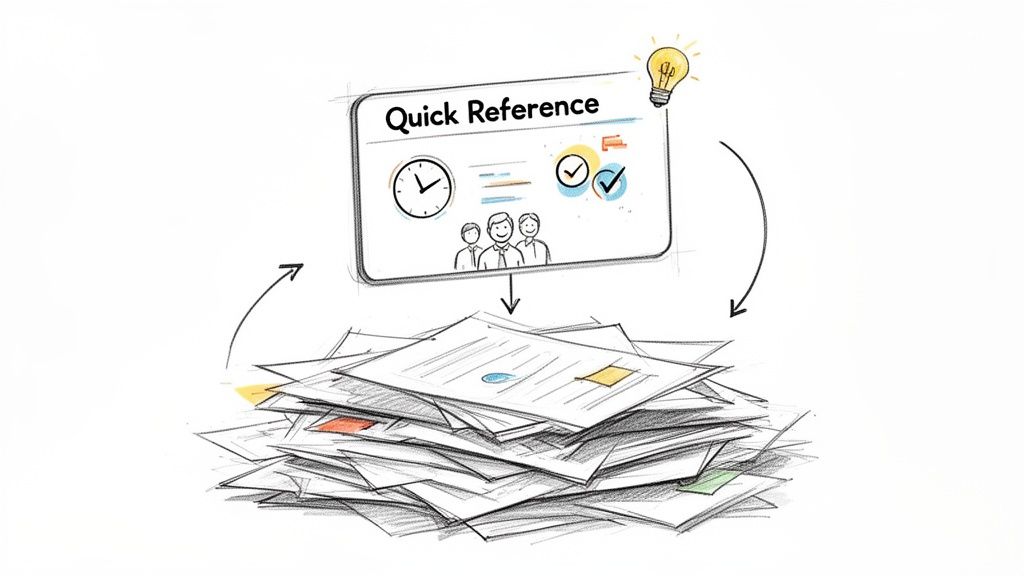
Starting with a template gives you a strategic advantage. You save time, include all the essential components, and stop reinventing the wheel. But the real win? Enforcing consistency across all your documentation.
Boosting Team Efficiency and Consistency
When every team member follows the same documented steps, errors drop and productivity climbs. A quick reference guide becomes the single source of truth that standardizes how work gets done. This is especially vital for remote or distributed teams where you can’t just lean over and ask a colleague for help.
The impact is real. Organizations using standardized templates report 40% higher process consistency. For new hires, well-designed guides have been shown to cut training costs by a staggering 25-30%.
A great quick reference guide doesn’t just answer questions—it prevents them from being asked in the first place. It empowers users with the exact information they need, right when they need it.
To help you see where this can make a difference for your own team, here’s a breakdown of the benefits across different functions.
Key Benefits of Using a Quick Reference Guide Template
This table breaks down the tangible advantages for different business functions, helping you pinpoint the value for your specific team.
Team/Function | Primary Benefit | Impact Example |
|---|---|---|
Customer Support | Faster Resolutions | Agents use a one-pager to solve a complex issue, improving First Call Resolution rates and customer satisfaction. |
Onboarding/HR | Consistent Training | Every new hire receives the same clear guide for setting up their accounts, reducing confusion and support tickets. |
Sales/Marketing | Product Knowledge | The sales team has a quick guide on new product features, ensuring they can answer customer questions accurately. |
Operations | Process Standardization | Everyone follows the same steps for a critical workflow, minimizing errors and improving overall efficiency. |
As you can see, the value isn't just theoretical. These guides solve real, everyday problems that slow teams down.
Empowering Customer Support and Success
For any customer-facing team, quick reference guides are a game-changer. They give support agents accurate, step-by-step solutions to common problems, letting them resolve issues faster and more effectively. One of the biggest wins is how a simple cheat sheet can directly help to improve First Call Resolution, a key metric for both customer happiness and operational efficiency.
Imagine equipping your agents with a one-page guide for a tricky software configuration. Instead of digging through a dense knowledge base while a customer waits, they have the answer at their fingertips. This doesn't just create a better customer experience—it also reduces agent stress and burnout.
The Anatomy of a High-Impact Quick Reference Guide
Before you even touch a template, let's talk about what makes a quick reference guide actually work. A great guide isn't just a list of steps. It's a piece of communication designed to anticipate someone's confusion and solve it instantly. Get the structure right first, and the rest becomes easy.
Structure is everything. A clear, descriptive title sets the right expectation from the start, telling the user exactly what problem they’re about to solve. From there, the content needs to be broken down with scannable headings that act like signposts. The goal is to guide the user to their answer without forcing them to read every single word.
This isn’t just about looking good—it's about applying solid user experience design principles to your documentation. A thoughtful structure prevents frustration and builds confidence.
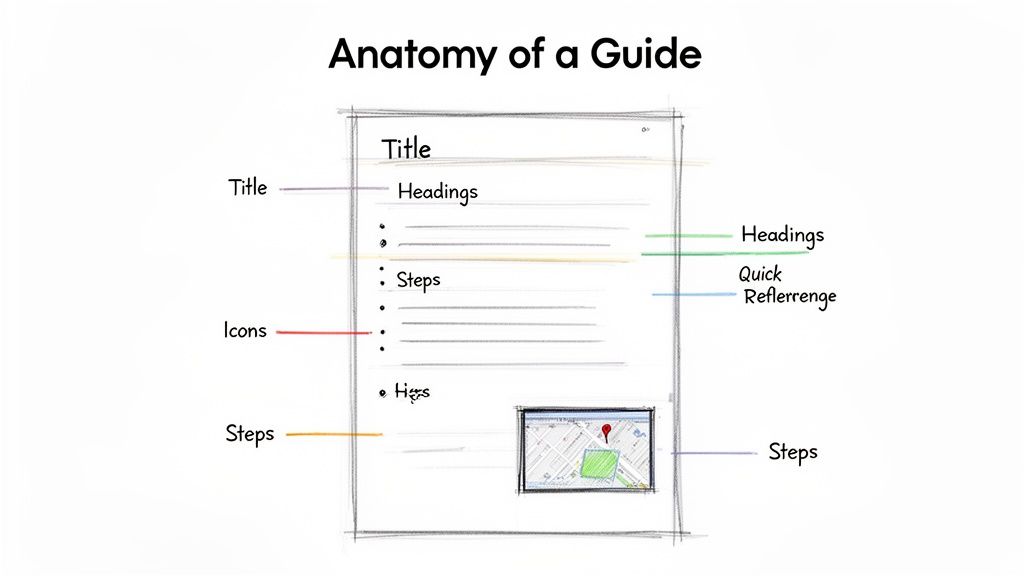
Core Structural Elements
Every guide that people actually use is built on a foundation of clarity and purpose. Each element has a specific job to do, and they all work together to create a seamless experience for the reader.
These are the non-negotiable components:
Action-Oriented Title: The title must be specific and use an active verb. Instead of a lazy title like "Software Settings," go with something direct like "How to Configure Your Notification Settings."
Brief Introduction: A one or two-sentence intro should frame the problem and the solution. Think: "This guide walks you through the three steps to connect your calendar. It should take less than two minutes."
Logical Content Blocks: Group related information under clear, concise headings. This makes your content digestible and keeps people from getting lost.
Visual Aids: Screenshots, icons, and simple diagrams communicate complex ideas way faster than text alone. A well-placed arrow on a screenshot can save a user minutes of confusion.
A high-impact guide respects the user's time. Its primary goal is to provide the fastest path to a correct answer, using a combination of concise text and clear visuals to eliminate ambiguity.
Crafting the Details That Matter
Beyond the main structure, it's the small details that really elevate a guide from good to indispensable. The language you use should be simple and direct. Jargon is your enemy. Use an active voice to make instructions crystal clear—think "Click the Save button," not the passive "The Save button should be clicked."
Formatting plays a huge role in scannability, too. Use bold text to highlight critical terms or actions. Break down steps or key takeaways with bullet points or numbered lists. And don't forget white space! It gives the content room to breathe and prevents the user from feeling overwhelmed by a wall of text.
Finally, always include a way to get more help. Even the best guide can’t cover every edge case. Providing an escape hatch, like "Still stuck? Contact our support team," shows the user you've got their back and completes the user-friendly experience. These are the elements that transform a simple document into a resource people actually trust and use.
Making Your Template Work in the Real World
A quick reference guide template gives you a great starting point, but its real value comes alive when you customize it. A one-size-fits-all guide rarely works because different people need different things. The trick is to adapt your template for the specific problem you're trying to solve.
You have to get inside the user's head. Are they a stressed-out customer trying to fix something that just broke? Or are they a new employee calmly walking through their first-day setup? Their mindset should shape everything—from the words you choose to how much detail you include.
A generic template might feel formal, but a customer troubleshooting guide needs to be simple and empathetic. For an internal guide, you can throw in company acronyms without a second thought. For an external one, that same language just creates confusion.
Tailoring Your Guide for Specific Audiences
Let’s look at two common scenarios. You’ll see how small tweaks can make a massive difference in how useful your guide actually is. The goal isn't just to fill in the blanks; it's to build a tool for a specific purpose.
Scenario 1: Internal Onboarding Checklist
An internal guide for a new hire can be much more direct. You can assume they have some basic knowledge about the company. Here, the focus is all about getting them up and running efficiently.
Language: Use internal terms and team names. Saying something like "Ping the #IT-support channel" is perfectly fine and, honestly, more helpful.
Structure: A checklist is your best friend here. It gives new hires a clear path and a sense of accomplishment as they check things off.
Visuals: Screenshots of your actual internal systems are non-negotiable. Add arrows and highlights to show them exactly where to click.
Scenario 2: Customer-Facing Troubleshooting Guide
A customer guide has a completely different job. It needs to be incredibly clear, patient, and reassuring. Always assume the user knows nothing about your system and is probably already a little frustrated.
Language: Ditch the jargon. Use simple, step-by-step instructions with a friendly, supportive tone.
Structure: A problem-and-solution format works wonders. Start with headings like, "If you see this error message..." so people can instantly find their exact issue.
Visuals: Use clean screenshots with obvious callouts. Better yet, a short GIF or video clip showing the process can eliminate any lingering confusion.
The best guides are audience-obsessed. Customization isn't about changing fonts and colors; it's about fundamentally reshaping the content to meet the user exactly where they are.
This targeted approach really works. The market for flexible documentation tools has exploded, driving 200% more customization since 2022. For SaaS teams, guides tailored to specific use cases can boost engagement by 50% and slash onboarding times.
Before and After: A Quick Example
Let's see what this looks like in practice. Imagine you’re creating a guide to help someone set up a new software integration.
Before (The Generic Template Version):
Heading: Integration Setup
Step 1: Authenticate your credentials.
Step 2: Configure the API endpoint settings in the administrative panel.
Step 3: Finalize the configuration and run a test.
This is technically accurate, but it's not helpful. It’s packed with jargon and assumes the user is a developer.
After (Customized for a Non-Technical User):
Heading: How to Connect Your Calendar in 3 Easy Steps
Step 1: Go to
Settings > Integrationsand click "Connect New App."Step 2: A pop-up will ask you to log in to your calendar. Just use your regular email and password.
Step 3: Once it’s connected, you’ll see a green "Active" status. You're all set!
See the difference? The "after" version is specific, uses clear action words, and even offers a little positive reinforcement. This level of detail is at the heart of great workflow documentation. To go deeper, check out our guide on creating a workflow documentation template that your team will actually use. Small changes like these are what turn a generic document into an indispensable tool.
Beyond Static Templates: Automating Guide Creation
A static quick reference guide template is a great place to start, but let's be honest—the real pain isn't creating the first version. It’s keeping it alive.
Manually updating screenshots, rewriting steps, and checking for consistency every time a process changes is a massive time sink. That’s valuable time you could be spending on work that actually moves the needle. This is where a little automation can completely change the game.
Modern tools are finally closing the gap between doing a task and documenting it. Instead of taking a dozen screenshots and painstakingly piecing them together, you can just record your screen while you run through a workflow. Smart software takes it from there, analyzing the recording and generating a step-by-step guide for you.
From Screen Recording to Polished Guide
The magic happens when technology translates your actions—clicks, typing, navigation—into clear, logical steps. Every action is captured as an individual screenshot, which is then automatically cropped and annotated to show exactly what happened.
This automated first draft is a game-changer. It completely eliminates the tedious, repetitive part of documentation. Suddenly, you’re not a writer starting from a blank page; you're an editor, jumping straight into refining and adding the context that only a human can.
This simple flow shows how a template becomes a truly high-quality guide.
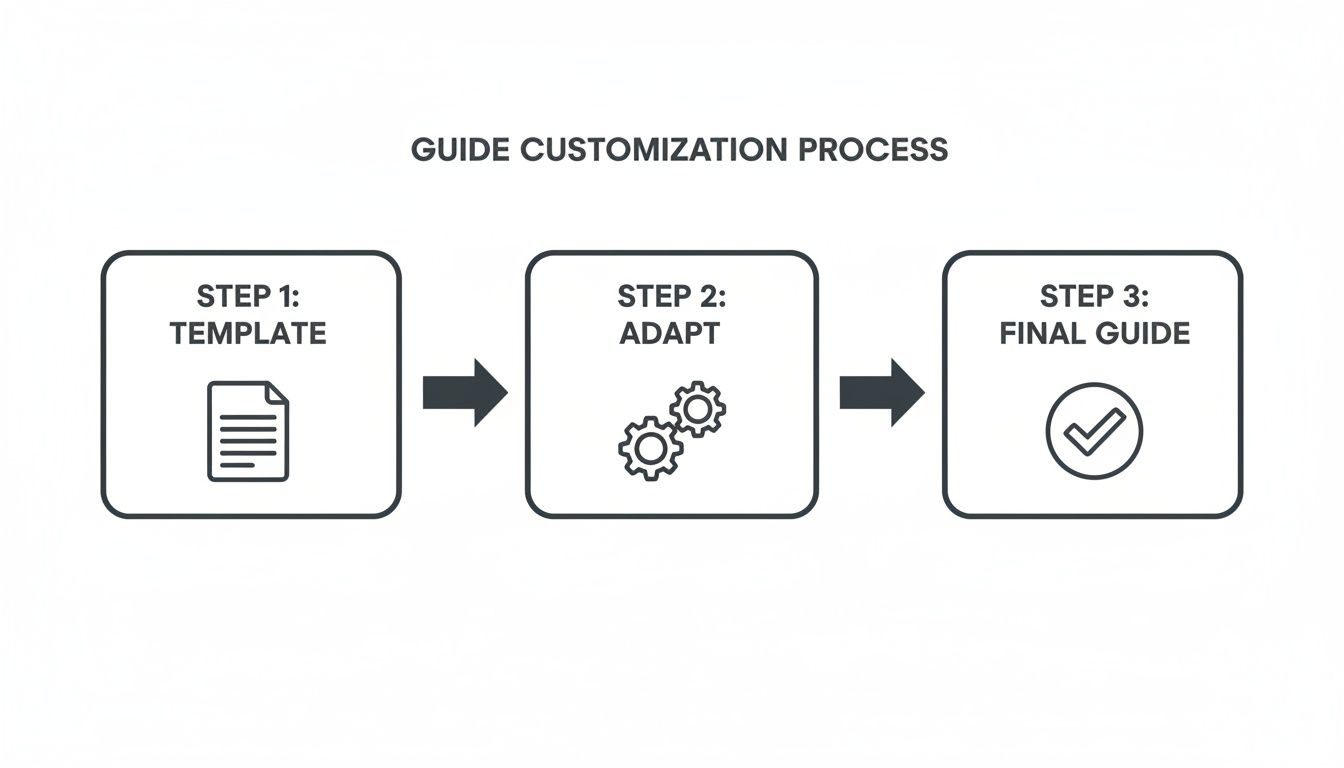
That middle step—adapting the raw output—is where your expertise turns a simple set of instructions into an indispensable resource.
Refining Your Automated Draft
Once the initial guide is generated, you can step in and add the human touch. This is where your insights make all the difference, turning a functional walkthrough into something your team or customers will actually use.
Here’s where you can add the most value:
Merge or Split Steps: Combine a few quick, related clicks into a single step to improve the flow. Or, break down a really complex action into smaller, more digestible parts.
Add Explanatory Notes: Provide the "why" behind a step. Add a crucial warning or a helpful tip that a screen recording alone could never capture.
Integrate Checklists: Turn key actions into interactive checklists. This is incredibly useful for onboarding guides or processes with multiple distinct parts.
Customize Annotations: Tweak the auto-generated callouts, arrows, and highlights to draw attention to the most critical detail in each screenshot.
Automation handles the 90% of documentation that’s just tedious, repetitive work. This frees you up to focus on the 10% that requires your human insight—the part that adds the real value for the user.
For instance, a recording shows you clicking "Save," but your refined guide can add a note like, "Make sure to save before navigating away, or your changes will be lost." This is the kind of practical advice that prevents frustration and builds trust. If you're looking for more ideas, we have a complete walkthrough on how to create a step-by-step guide with these modern techniques.
This approach solves the biggest problem with documentation: keeping it accurate without endless manual effort. The best teams are moving beyond static files and building living libraries of knowledge that evolve right alongside their processes.
Pro Tips for Creating Clear and Scannable Guides
Creating a guide that people actually use is less about what you say and more about how you present it. The goal is to make information so easy to find that a user barely has to think.
This is where your document goes from a simple list of instructions to an indispensable tool. A great guide respects the reader's time by making content effortless to scan. You want their eyes to jump directly to the answer they need.
Use Visual Hierarchy to Guide the Eye
The most effective guides use visual cues to create a clear path through the information. Think of your formatting as a set of signposts. Strategic use of bolding, color, and spacing tells the user what's important before they even read a word.
This visual hierarchy is critical for scannability. Here are a few simple, high-impact techniques you can use right away:
Bold Key Actions: Make verbs and critical terms stand out. For example, "Click the Save button" or "Enter your API Key." This helps the eye lock onto the most important part of the instruction.
Use Color Intentionally: A single, distinct color can draw attention to warnings, tips, or important notes. Don’t overdo it—one or two accent colors are all you need to highlight information without creating chaos.
Leverage Whitespace: The space between elements is just as important as the elements themselves. Ample whitespace prevents the content from feeling intimidating and helps separate distinct ideas, making the whole page easier to process.
Write for Clarity and Action
The language you use can either clarify or confuse. The best technical documents use simple, direct language that leaves no room for misinterpretation. Writing in an active voice is one of the most powerful ways to achieve this.
An active voice puts the user in control. Instructions like "Select your account from the dropdown menu" are far clearer and more direct than the passive "The account should be selected from the dropdown menu."
Keep your sentences short and to the point. If a sentence explains more than one idea, break it into two. This is one of the most important concepts in effective documentation, as explored in many technical writing best practices. The goal is immediate comprehension, not literary prose.
This approach is more important than ever. Interactive SOPs are seeing a 120% spike in usage since the pandemic, with analytics showing they achieve 40% higher view completions compared to old-school static documents. To learn more about this trend, you can explore the research on AI-enhanced guides.
Test Your Guide with a Fresh Pair of Eyes
You are the worst person to test your own guide.
Because you already know how the process works, your brain will unconsciously fill in any gaps or confusing steps. The only way to know if your guide is truly clear is to watch a complete beginner try to use it.
Give your draft to a colleague from another department or a new hire. Ask them to follow the steps without any help from you. Watch where they hesitate, get stuck, or ask questions. These moments are gold—they reveal exactly where your instructions are failing. Every point of confusion is an opportunity to refine your guide and make it better for everyone.
A Few Common Questions
Even with the best template, a few questions always pop up. Here are some straightforward answers based on what we see work best.
What’s the Ideal Length for a Quick Reference Guide?
Keep it to one or two pages. Seriously.
The whole point is to give someone an "at-a-glance" understanding. If your guide starts creeping onto a third page, that's a huge red flag. It usually means the process is too complicated for a single, quick document.
When that happens, you have a couple of great options. You can either break the workflow down into a few smaller, more focused guides, or you can keep this guide high-level and just link out to more detailed documentation for those who need it. Always, always prioritize the most critical, need-to-know info.
What's the Best Way to Share a Guide?
PDFs are easy and everyone can open them, but they have a fatal flaw: they’re static. The moment you share a PDF, it starts going out of date.
Modern teams get way more mileage from dynamic, web-based guides. A live, web-based guide is the way to go for a few key reasons:
Instant Updates: Any change you make is live for everyone immediately. No more worrying about someone using an old version.
Interactive Goodies: You can embed things like videos, GIFs, and even clickable checklists to make the guide genuinely useful, not just readable.
See What's Working: You can actually track who’s looking at the guide and which parts get the most attention, which is invaluable feedback.
For internal teams, publishing guides to a central spot like a company wiki or a dedicated hub is a game-changer. Everyone knows exactly where to find the latest version.
A guide is only useful if it's accurate. Web-based formats make it incredibly simple to keep your documentation alive and trustworthy, which is a massive advantage over static files.
How Often Should I Update My Guides?
You should probably glance at your guides at least quarterly. But here's the more important rule: update them immediately whenever the process or software changes.
An outdated guide is actually worse than no guide at all. It creates confusion, causes mistakes, and slowly erodes your team's trust in all of your documentation.
This is where modern guide-building tools really shine. Instead of the painful process of redesigning a static file, you can just pop in, edit a single step, or swap out an old screenshot in a few seconds. That small shift in workflow makes it realistic to maintain a library of resources that people can actually rely on.
Can I Use a Guide for Customer Onboarding?
Absolutely. Quick reference guides are perfect for this.
They're a fantastic way to walk new customers through those first few critical steps, highlight a few key features they shouldn't miss, or offer a simple troubleshooting checklist for common setup hiccups.
This lets new users get up and running on their own terms, without having to wait for a support reply. A well-placed guide can massively cut down on those early-stage support tickets and dramatically improve the customer experience right from the start. It just sets a better tone for the entire relationship.
Ready to stop creating static documents and start building a living library of interactive guides? Build a Guide turns your screen recordings into polished, step-by-step documentation automatically. See how it works.