
February 24, 2026
12 Best Quick Reference Guide Templates for 2026
Discover the top 12 quick reference guide templates to create stunning, effective job aids. Download and customize templates for any use case today.
Quick reference guides (QRGs) are the unsung heroes of workplace efficiency. They distill complex processes into scannable, single-page documents that empower teams to act confidently without digging through dense handbooks or interrupting colleagues. The biggest challenge? Creating them from scratch is a significant time commitment, often leading to inconsistent and outdated resources. A well-designed template provides the necessary structure, allowing you to focus purely on the critical content.
This resource cuts through the noise to bring you the best quick reference guide templates, platforms, and dedicated tools available today. We move beyond simple lists to provide a practical analysis of each option, helping you match the right tool to your specific job. Whether you're an agency delivering SOPs to clients, a customer success team documenting product workflows, or an operations manager standardizing onboarding, this guide has a solution for you.
For each of the 12 resources, you will find:
A direct link to the template or platform.
Preview screenshots to show the design and layout.
Specific use cases to understand where it excels.
Customization tips for adapting it to your brand and needs.
We'll evaluate everything from dedicated guide-building software like Build a Guide and Scribe to versatile design platforms like Visme and Adobe Express. Our goal is to give you a clear, direct path to creating effective, professional-looking guides that people will actually use. Let's find the perfect template for your project.
1. Build a Guide
Build a Guide stands out as a powerful platform for creating quick reference guide templates directly from screen recordings. Instead of starting with a blank document, its AI-driven process automatically converts a video of your workflow into a structured, step-by-step guide complete with screenshots, annotations, and clear instructions. This automation dramatically reduces the initial effort required to document complex processes.
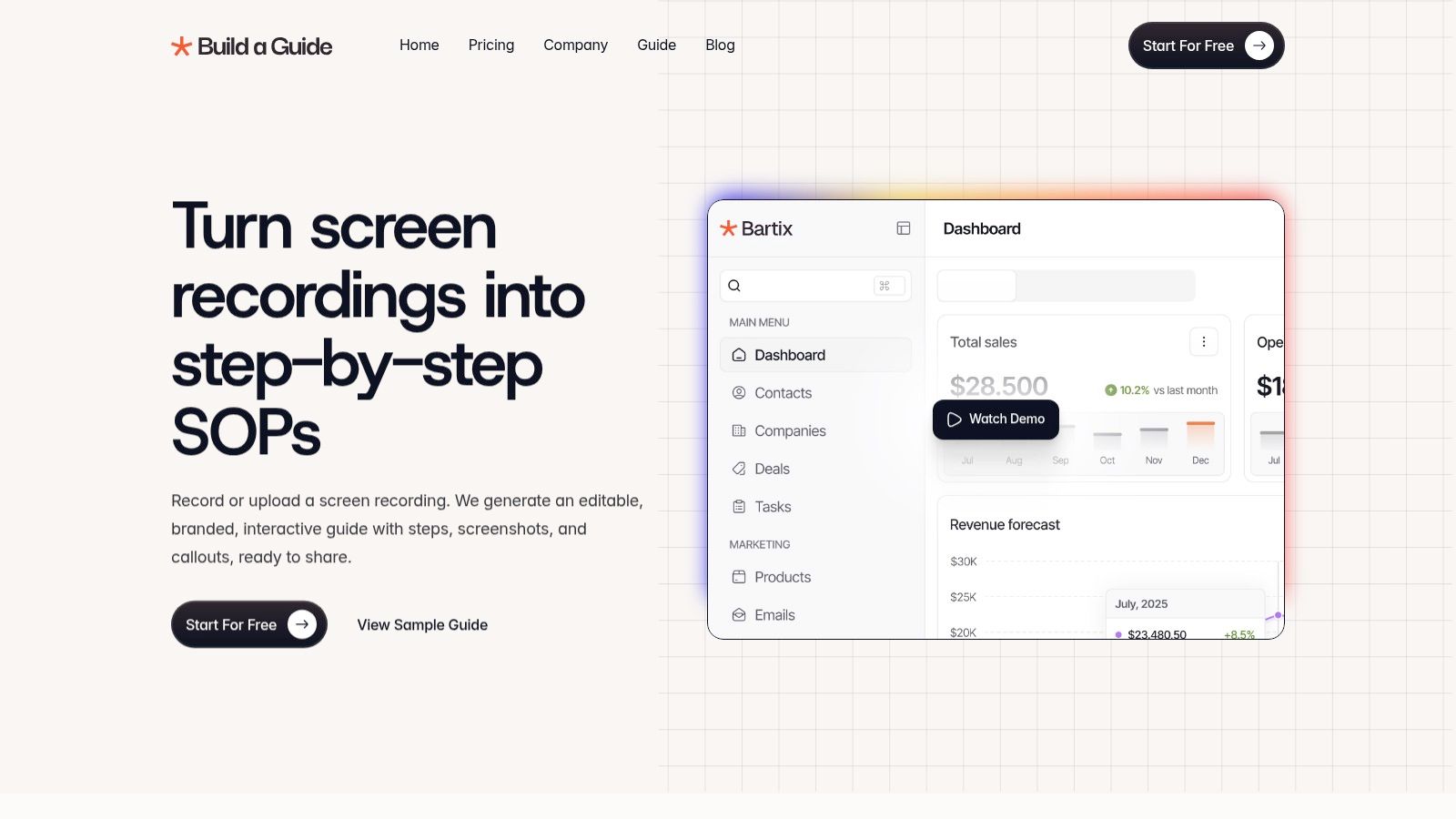
The platform is particularly well-suited for teams that need to create and maintain a library of standard operating procedures (SOPs). Once a guide is generated, the built-in editor allows for extensive refinement. You can add notes, checklists, and audience-specific variations, ensuring the final product is precise and useful. For structuring your information effectively, you might find inspiration from resources like these 12 Best Course Outline Templates for organizing content logically.
Unique Capabilities and Use Cases
One of Build a Guide's core strengths is its publishing and management framework. You can publish guides to branded hubs or custom domains, maintaining a professional appearance. This is especially valuable for agencies managing documentation for multiple clients or for large organizations standardizing processes across departments. Real-time collaboration allows team members to co-edit guides and leave comments, creating a living document that stays current.
Key Differentiators:
AI-Powered SOP Generation: Automatically converts screen recordings into detailed guides.
Integrated Editing Tools: Refine generated content with a rich-text editor, checklists, and notes.
Multi-Hub Management: Ideal for agencies or businesses managing multiple brands or client accounts.
Engagement Analytics: Track views, completion rates, and user interactions to improve guide effectiveness.
While the AI significantly accelerates the creation process, manual review is still necessary to ensure accuracy and clarity. The platform doesn't display public pricing or certifications on its website, so you'll need to contact them for a demo and to discuss security or ROI considerations.
Website: https://buildaguide.app
2. Scribe
Scribe stands out by automating the most time-consuming part of creating a quick reference guide: capturing the steps. Instead of manually taking screenshots and writing instructions, its browser extension and desktop app record your clicks and keystrokes, instantly generating a step-by-step guide. This makes it an excellent choice for teams that need to document software workflows for customer support, standard operating procedures (SOPs), or employee onboarding. The platform provides a dedicated Quick Reference Guide template that acts as a container, allowing you to combine multiple individual guides, text blocks, and even videos into a single, cohesive document.
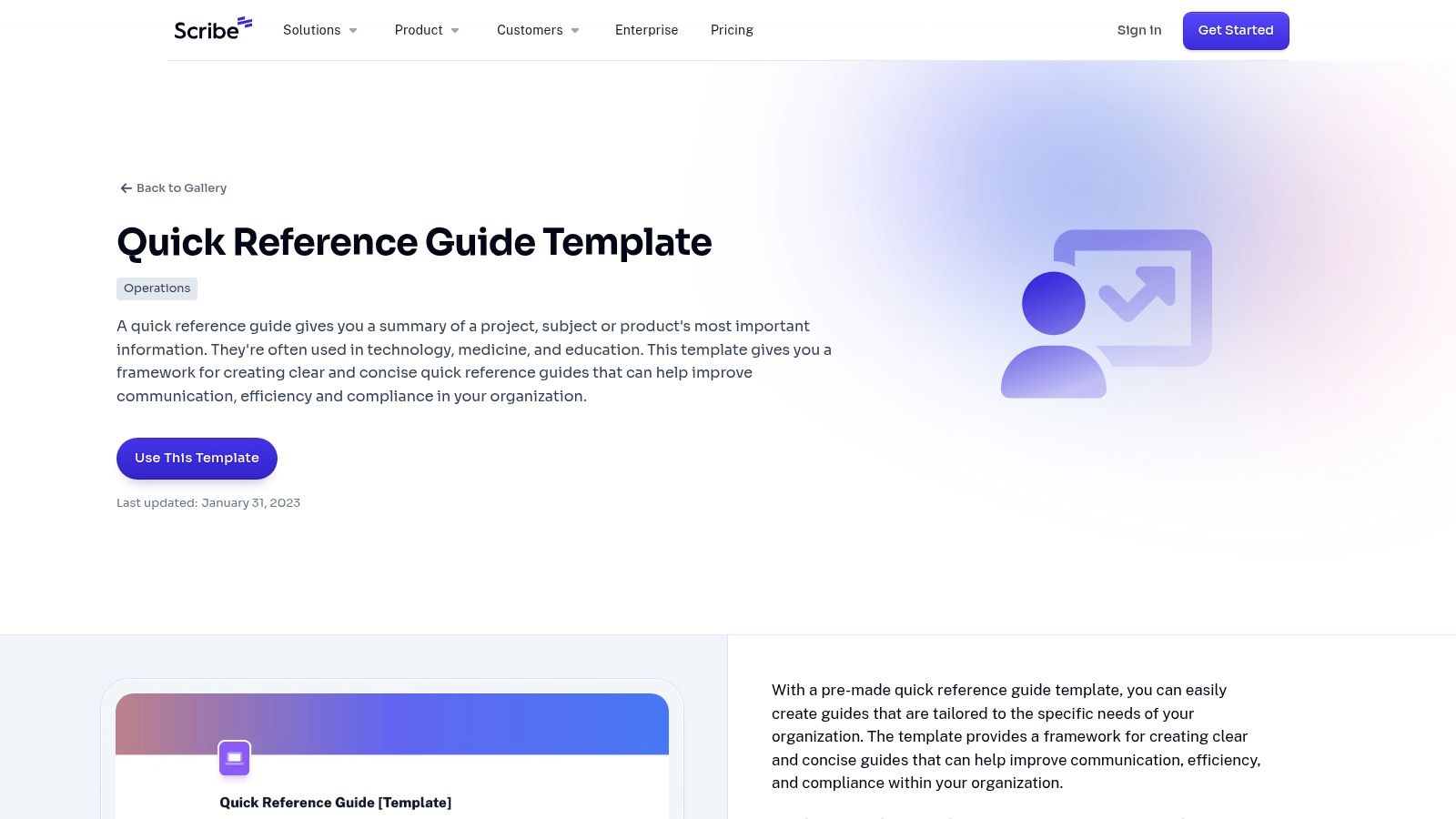
The primary advantage is speed. You can document a complex process and have a polished, shareable guide ready in minutes. The user experience is clean and focused on efficiency. Sharing is simple, with options to generate a link, embed on a website, or export to PDF, HTML, or Markdown. For more details on what makes an effective QRG, check out this in-depth overview of quick reference guides.
Key Features & Considerations
Scribe's free plan is quite generous for browser-based recording. However, capturing processes in desktop applications requires upgrading to a paid plan. While customization options are more limited than a graphic design tool, this simplicity is part of its appeal, ensuring a consistent and professional look without much effort.
Best For: Customer success teams, operations managers, and anyone documenting software processes.
Access: Free tier available for web capture; paid plans unlock desktop recording and advanced features.
Pros: Extremely fast process-to-document workflow, automatic screenshot generation, easy to update.
Cons: Limited design flexibility, desktop capture is a premium feature.
Website: https://scribe.com/page-templates/quick-reference-guide-template
3. TechSmith Snagit
TechSmith Snagit is primarily known as a powerful screen capture tool, but its strength in creating quick reference guide templates lies in its specialized “Image from Template” and “Step Capture” features. Instead of just taking individual screenshots, Snagit allows you to record a process, automatically capturing each click and organizing the screenshots into a numbered, step-by-step layout. This makes it exceptionally efficient for producing concise, visual one-page guides for software tutorials, IT support, or process explanations.
The primary advantage of Snagit is the speed from capture to a polished, shareable one-pager. Beyond simple captures, TechSmith Snagit provides robust editing and annotation features, making it a powerful screenshot editor essential for creating visual quick reference guides. You can instantly add arrows, callouts, and text to clarify each step directly within the application. For those interested in the fundamentals of building effective documentation, you can learn more about how to create a step-by-step guide with these principles in mind.
Key Features & Considerations
Snagit operates as a paid, one-time purchase desktop application for both Windows and macOS. The built-in templates are designed for visual clarity, but they offer less layout flexibility compared to a dedicated graphic design suite. This trade-off is intentional, prioritizing speed and consistency over complex design customization, making it perfect for users who need to produce professional-looking guides without a design background.
Best For: IT support staff, trainers, and anyone creating highly visual, single-page instructional documents.
Access: Paid software with a one-time license fee; a free trial is available.
Pros: Ideal for concise, screenshot-centric QRGs, fast from capture to shareable one-pager, Step Capture workflow is unusually efficient.
Cons: Limited design flexibility, best suited for image-centric guides rather than long-form text manuals.
Website: https://www.techsmith.com/learn/tutorials/snagit/image-from-template/
4. Visme
Visme positions itself as a comprehensive visual design tool, and its strength for creating quick reference guides lies in its extensive library of professional templates. It’s an ideal choice for creating highly branded, customer-facing one-pagers, cheat sheets, and guides. The platform’s drag-and-drop editor allows for deep customization, enabling teams to apply a consistent brand identity using pre-loaded logos, colors, and fonts from a brand kit. This makes it particularly effective for marketing, sales, and customer success teams who need polished, visually appealing documents.
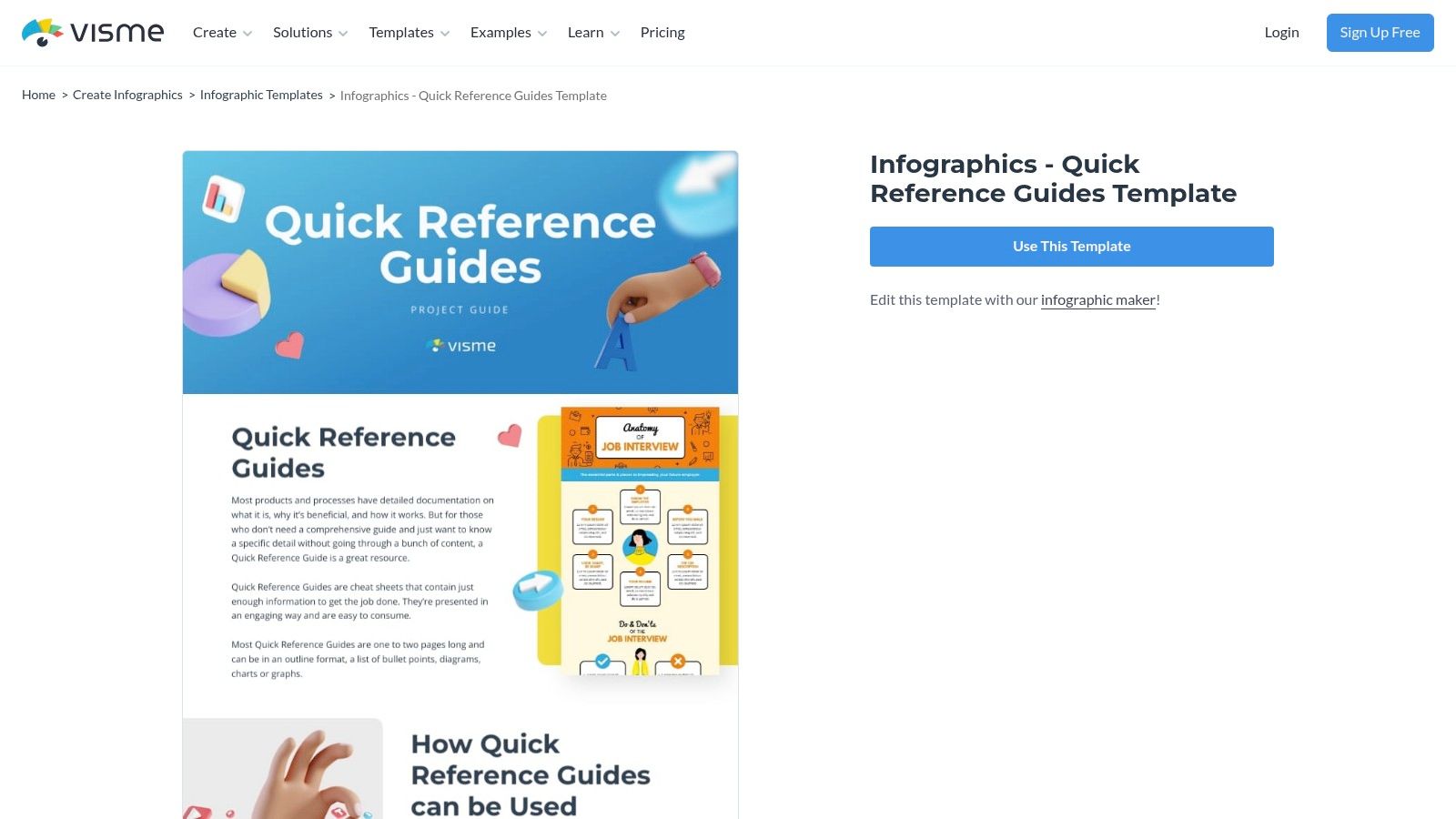
Unlike pure documentation tools, Visme excels at turning a simple quick reference guide template into an engaging piece of content. Users can export their guides as interactive HTML5 files, complete with animations, hotspots, and embedded charts, or download them as static PDFs or images. This versatility supports both digital distribution and print needs, allowing the same core design to serve multiple purposes. The user interface is intuitive for those familiar with graphic design software, focusing on creative control.
Key Features & Considerations
While the free plan offers a good starting point, many of Visme's most attractive templates and advanced features, like the full brand kit functionality and premium assets, are gated behind a paid subscription. Its collaboration features are also less developed compared to dedicated document platforms like Google Docs, making it better for individual creators or small teams where one person handles the final design.
Best For: Marketing teams, agencies, and anyone needing to produce visually branded, customer-facing guides.
Access: Free plan available with limitations; paid plans unlock premium templates, brand kits, and export options.
Pros: Large, professional template library; strong brand consistency features; can create interactive HTML5 exports.
Cons: Key features and templates are behind a paywall; collaboration tools are not as robust as other platforms.
5. Venngage
Venngage is an online design platform that excels at helping non-designers create visually polished documents, including quick reference guides. It offers a large library of job-aid, reference guide, and cheat-sheet templates that are ideal for marketing-friendly one-pagers or internal communications. A key differentiator is its AI Cheat Sheet Generator, which can jump-start the creation process by generating layouts and initial content, saving considerable time on brainstorming and design. This makes it a great fit for users who prioritize professional aesthetics without a steep learning curve.
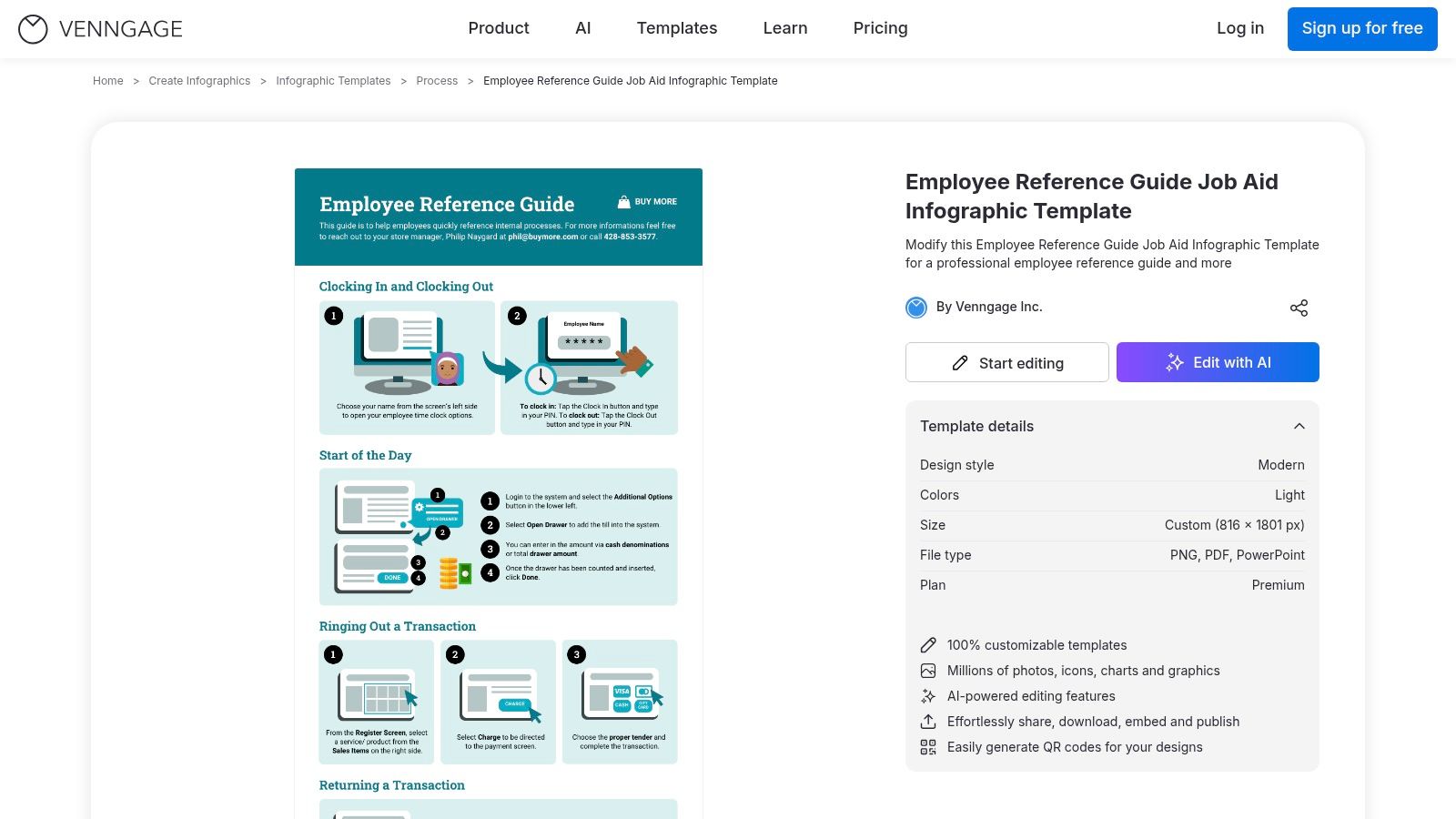
The platform provides a solid balance between creative flexibility and user-friendly operation. Its drag-and-drop editor, combined with Brand Kit support, allows teams to maintain a consistent visual identity across all materials. While it's geared toward single-page documents rather than multi-step software guides, its strengths lie in producing attractive, printable, and shareable resources. If you're building a document from scratch, it helps to understand the core elements of a great QRG; you can get ideas from this collection of quick reference guide template examples.
Key Features & Considerations
Venngage’s free plan is useful for exploring the editor and templates, but practical use requires a paid subscription, as downloading is limited. Higher-tier plans unlock premium templates, assets, and crucial export formats like high-resolution PDF and PowerPoint. The AI generator is a helpful starting point, but the content it produces still needs careful review and customization to fit specific needs.
Best For: Marketing teams, HR departments, and anyone needing visually engaging, single-page reference materials.
Access: Free plan with limited features; paid plans are required for most export options and advanced tools.
Pros: Very approachable for non-designers, AI generator accelerates layout and content creation, strong visual polish.
Cons: Free plan has significant download and export limitations; some templates and assets require a Business plan.
6. Mural
Mural pivots from traditional, linear documents to a dynamic, collaborative canvas. Its approach is ideal for teams that think visually, especially in product development, UX research, and design. Instead of a step-by-step procedure, Mural's quick reference guide template acts as a central hub for project alignment. It provides dedicated sections to summarize design intent, research highlights, key principles, and milestones on a single, glanceable board. This makes it a powerful tool for ensuring cross-functional teams share a common understanding.
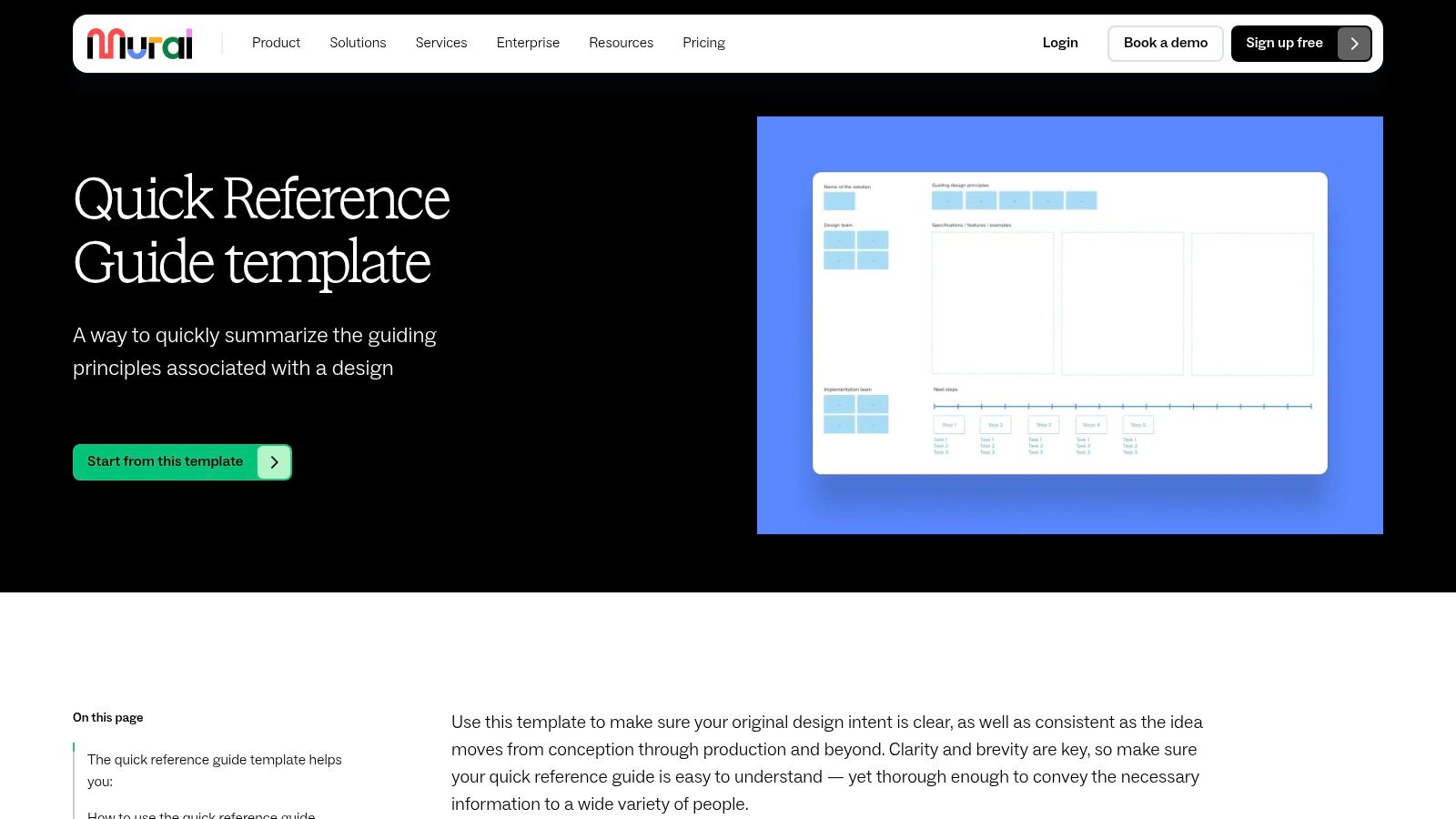
The main benefit here is real-time, visual collaboration. Teams can add sticky notes, comments, and images together, making the guide a living document that evolves with the project. It excels as a reference for design systems or strategic overviews, where visual context is more important than a sequence of actions. Sharing is simple for internal teams, as the board lives where they already collaborate, but it's less suited for creating polished, print-ready PDFs for external audiences without extra steps.
Key Features & Considerations
Mural's strength is in group brainstorming and synthesis, not in producing formal documentation. The user experience is fluid and intuitive for anyone familiar with digital whiteboards. However, to access or contribute to a board, stakeholders must have Mural access, which can be a hurdle for external distribution. Think of it as a project's "single source of truth" board rather than a distributable how-to guide.
Best For: Product teams, UX designers, and project managers needing a visual summary of project goals and principles.
Access: A free plan is available with limitations; paid plans are required for unlimited murals and advanced features.
Pros: Excellent for visual alignment, supports real-time collaboration, keeps project context in one shared space.
Cons: Not designed for creating print-ready or PDF guides, requires all users to have Mural access.
Website: https://www.mural.co/templates/quick-reference-guide?utm_source=openai
7. Creately
Creately offers a visual-first approach to creating quick reference guides, blending diagramming capabilities with document creation. It’s a great fit for users who need to illustrate complex processes with flowcharts or mind maps and present them in a clean, one-page format. The platform provides a simple, editable quick reference guide template on an infinite canvas, which allows you to combine text-based instructions with visual elements. This makes it particularly effective for technical documentation, system overviews, or any guide where a diagram can clarify a sequence of steps better than words alone.
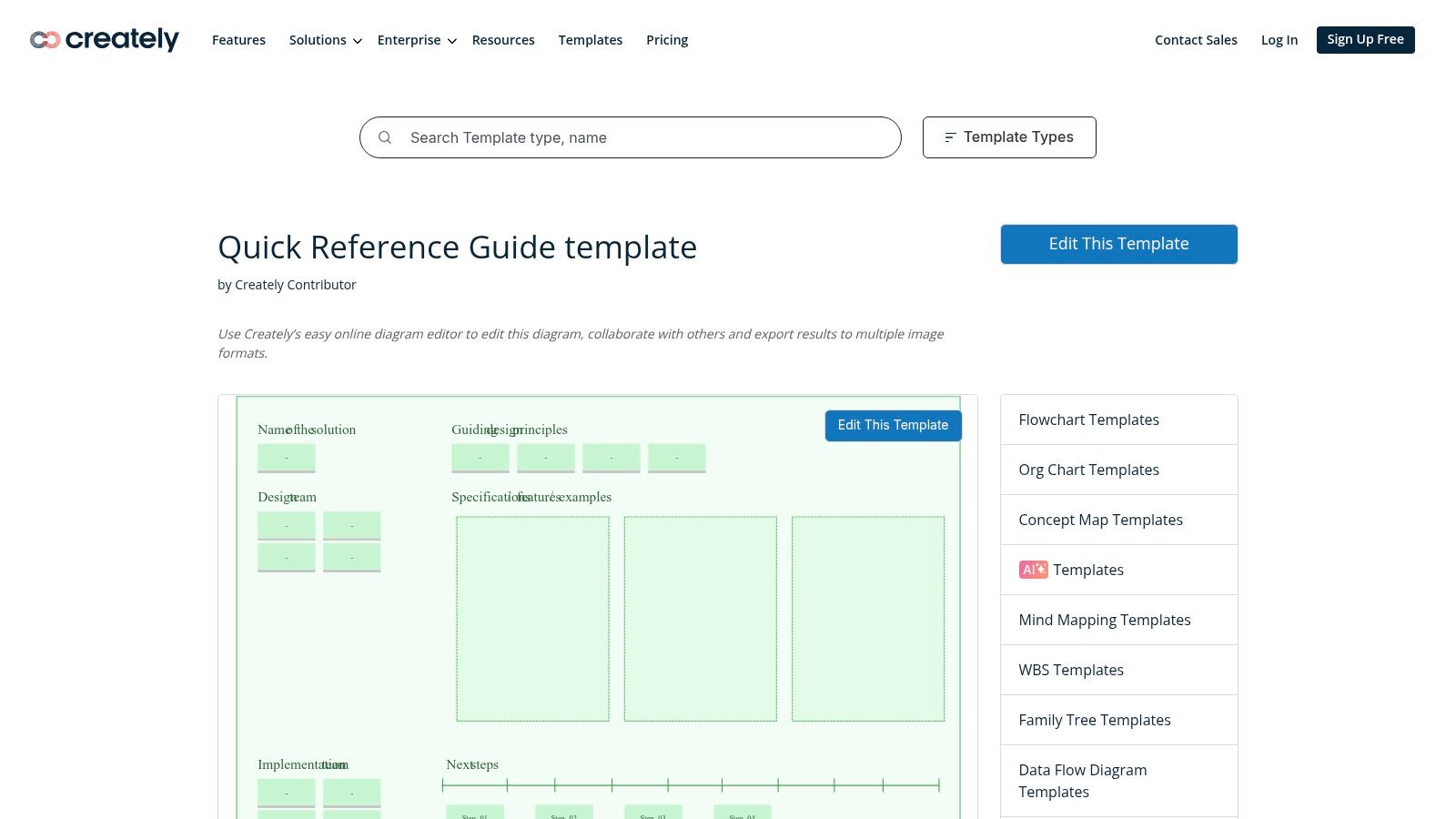
The primary strength of Creately is its simplicity and export flexibility. You can quickly adapt the starter layout, add your own process diagrams directly within the editor, and then export the finished guide as a PDF, PNG, or SVG. This makes it easy to create printable one-pagers for an office wall or embed high-quality vector graphics into a knowledge base or website. The user experience is straightforward, focusing on getting from concept to a shareable visual asset with minimal friction.
Key Features & Considerations
Creately's free plan allows for a limited number of documents and collaborators, which is suitable for individual use or small projects. Paid plans expand these limits and add more advanced features. While its template gallery isn't as extensive as dedicated design suites like Canva, its focus on diagramming provides a unique advantage for visually explaining workflows. It strikes a good balance for those who find graphic design tools too complex but need more visual power than a standard text editor.
Best For: IT managers, process analysts, and educators creating visual, diagram-heavy guides.
Access: Free plan available; paid tiers offer more documents, shapes, and collaboration features.
Pros: Integrates diagramming directly into the guide, flexible export options (PDF, PNG, SVG), lightweight and easy to use.
Cons: Smaller selection of templates, lacks advanced brand governance features found in enterprise tools.
Website: https://creately.com/diagram/example/pLnFF5Srs5X/quick-reference-guide-template
8. Template.net
For teams that operate primarily within the Microsoft Office ecosystem, Template.net provides a straightforward, no-frills solution. It offers a broad catalog of ready-to-download Microsoft Word quick reference guide templates that can be branded and printed quickly. This makes it an ideal fallback for organizations where compliance dictates the use of Office documents or for teams that need a fast, offline-first starting point for quick-start guides, troubleshooting instructions, or user manuals without learning a new platform.
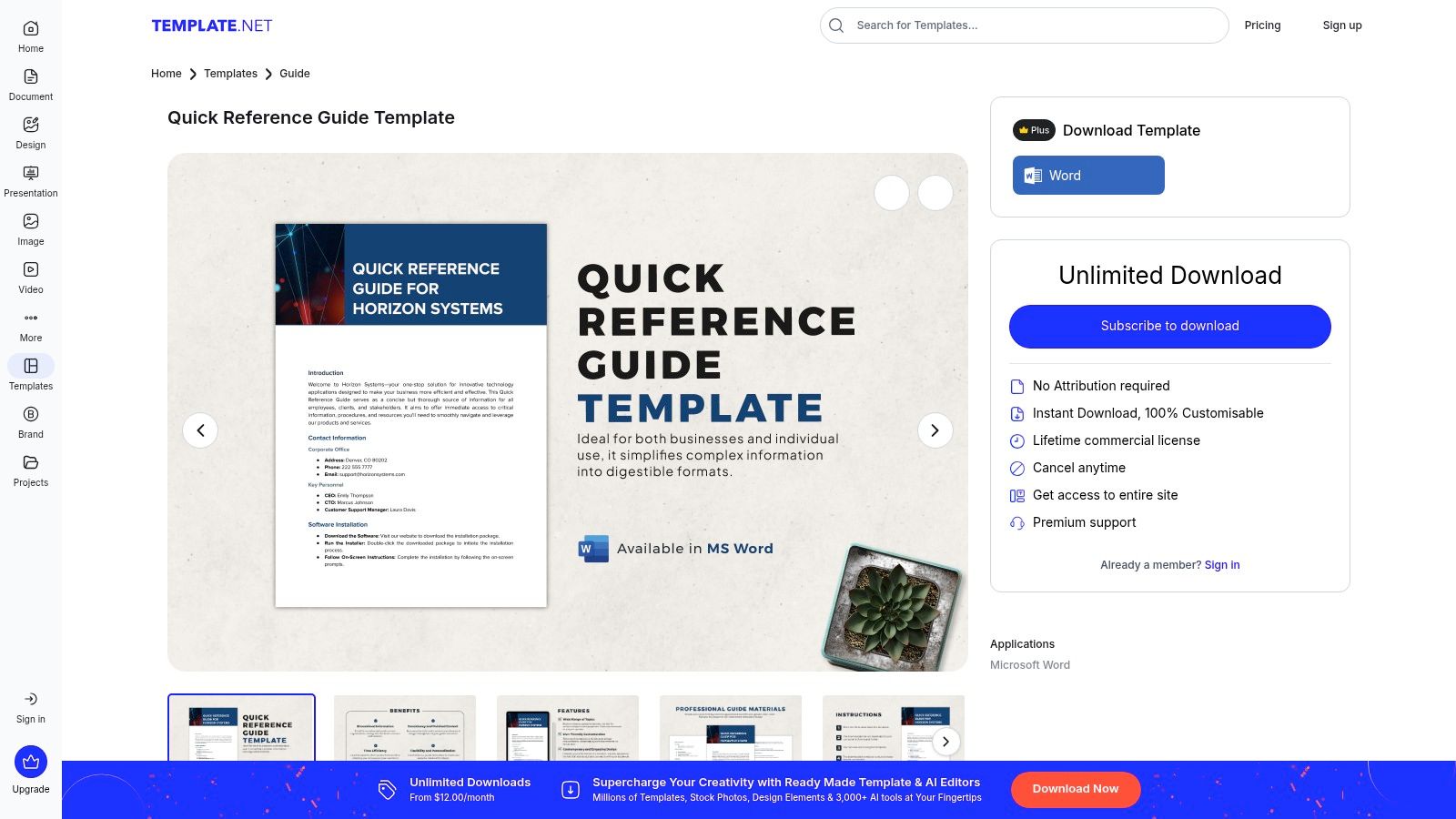
The main benefit here is speed and familiarity. If your team lives in Word, you can download a template, add your content, and distribute it as a DOCX or PDF in minutes. The layouts are print-ready and professionally structured, saving you the initial setup time. This approach is particularly useful for creating static, one-off documents that don't require frequent online updates.
Key Features & Considerations
While Template.net offers some free templates, many of the higher-quality designs require a subscription for full access and download. The platform's strength is its simplicity; it doesn't try to be a web-based editor. However, this means design flexibility is entirely dependent on a user’s proficiency with Microsoft Word’s tools, and the final guides are less interactive than web-hosted alternatives.
Best For: Teams needing print-ready documents, organizations with strict MS Office compliance, and users who prefer offline editing.
Access: Offers a mix of free and premium templates; a subscription is needed for the full catalog.
Pros: Very fast for Word-centric teams, simple licensing and downloads, excellent for offline-first workflows.
Cons: Less interactive than web-based guides, design flexibility is limited by Word's capabilities, premium designs require payment.
Website: https://www.template.net/editable/171805/quick-reference-guide-template
9. Atlassian Confluence
Atlassian Confluence excels at creating "living" quick reference guides that are embedded within a larger knowledge ecosystem. Rather than producing static, one-off documents, its templates for how-to and troubleshooting articles are designed to be part of an internal or external knowledge base. This approach is ideal for IT support, HR, and operations teams that need their documentation to be easily discoverable, version-controlled, and consistently updated. The platform's strength lies in its ability to connect information, turning individual guides into a web of interconnected knowledge.
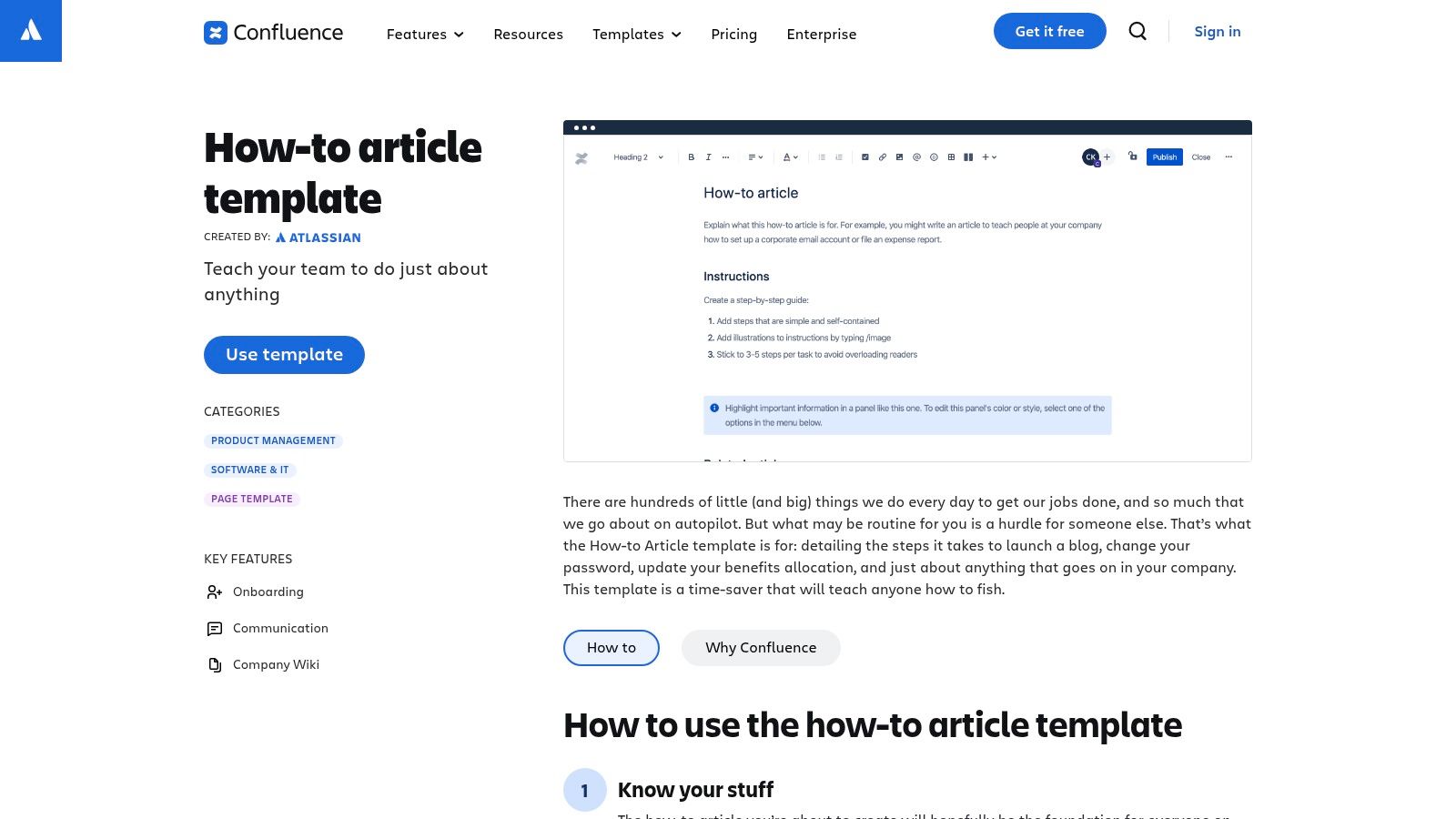
The user experience feels more like a powerful wiki than a design tool. You can build out your quick reference guide template using structured layouts, tables, and macros. Its true power comes from organizational features like labels and page properties, which automatically populate index pages, making it simple for users to find the exact guide they need. Governance is another core benefit, with built-in comments for feedback, robust version history, and detailed permissions to control who can view or edit content.
Key Features & Considerations
Confluence is available through a free plan that supports up to 10 users, making it accessible for small teams. However, advanced features and larger teams will require a paid subscription. While the platform produces clean and highly functional guides, the final output prioritizes scannability and information architecture over the polished, graphic-heavy design you might get from a dedicated design tool. Exported PDFs are functional but reflect this wiki-like structure.
Best For: Internal support teams, operations managers, and anyone building a comprehensive, long-term knowledge base.
Access: Free tier for up to 10 users; paid plans for larger teams and advanced features.
Pros: Excellent for living guides that require governance, strong discoverability through cross-linking and labels, well-suited for internal documentation workflows.
Cons: More wiki-like than design-focused, exported PDFs are functional but not highly stylized.
Website: https://www.atlassian.com/software/confluence/templates/how-to-article?utm_source=openai
10. Adobe Express
Adobe Express is a powerful, template-driven design tool ideal for producing branded and visually polished quick reference guides with minimal design effort. While not having a dedicated "quick reference guide" category, its extensive library of one-pagers, brochures, and handbooks serves the same purpose. Users can search for a layout that fits their needs and adapt it, making it perfect for creating print-friendly or digital documents that need to align with established brand aesthetics. The platform's strength is its simplicity combined with professional-grade assets.
The user experience is friendly for non-designers, focusing on quick-replace tools that swap text and images globally and maintain consistency. Integration with the broader Adobe ecosystem means users can pull in assets from Adobe Stock or even start a design in Express and refine it later in a more advanced tool like InDesign. This makes it a great starting point for agencies or consultants who need to deliver professional-looking standard operating procedures (SOPs) without getting bogged down in complex design software.
Key Features & Considerations
Adobe Express offers a free plan with thousands of templates, but many premium templates and stock assets require a paid subscription. The key is to find a suitable free template and customize it. While it offers more design control than a process-documentation tool, it lacks the automated step-capture features found in dedicated guide builders. The focus here is on the final visual output, not the speed of content creation.
Best For: Marketing teams, consultants, and HR managers needing branded, print-ready documents.
Access: Free plan available; paid subscription unlocks premium templates, assets, and features.
Pros: Fast path to professional, branded QRG layouts; excellent for non-designers; integrates with other Adobe tools.
Cons: QRGs are a use case, not a named template category; requires manual content creation and formatting.
Website: https://www.adobe.com/express/templates/?utm_source=openai
11. Miro
Miro shifts the concept of a quick reference guide from a static, printable document to a dynamic, collaborative board. It excels at creating living references that teams can contribute to and interact with in real-time. Instead of a traditional document, Miro’s templates, like the UX Research Cheat Sheet found in its community-driven Miroverse, act as centralized knowledge hubs. This approach is ideal for teams needing an interactive reference for workshops, ongoing projects, or collaborative brainstorming sessions where information needs to be constantly accessible and up-to-date.
The platform’s strength lies in its infinite canvas and real-time collaboration features. You can build out complex guides with distinct sections using frames for easy navigation, embed links to external resources, and use interactive elements like sticky notes for team feedback. This makes the guide a destination rather than just a handout. For teams documenting complex systems or creative workflows, a Miro board serves as a perfect visual and interactive complement to more traditional, text-based quick reference guide templates.
Key Features & Considerations
Miro’s free plan offers a generous starting point with access to core features and templates. The platform is not designed to produce polished, print-ready one-pagers; its output is best viewed and used within the Miro ecosystem. This means anyone needing to view the guide must have access to the board, which can be a hurdle for external distribution compared to a simple PDF.
Best For: UX researchers, workshop facilitators, agile teams, and anyone needing a living, visual reference point.
Access: Free tier available; paid plans unlock advanced collaboration features and unlimited private boards.
Pros: Excellent for live workshops and ongoing team references, easy to keep current, highly visual and interactive.
Cons: Not suitable for creating polished, print-ready documents, requires viewer access to the Miro board.
Website: https://miro.com/templates/ux-research-cheat-sheet/
12. Piktochart
Piktochart specializes in turning information into visually engaging infographics and one-pagers, making it a strong choice when your quick reference guide needs to be both informative and attractive. It stands out with its AI handbook generator, which can create a multipage document from a simple prompt or an existing upload. For shorter QRGs, its vast gallery of infographic and single-page templates provides a perfect starting point. The platform is designed for non-designers who need to produce professional, print-ready materials without a steep learning curve.
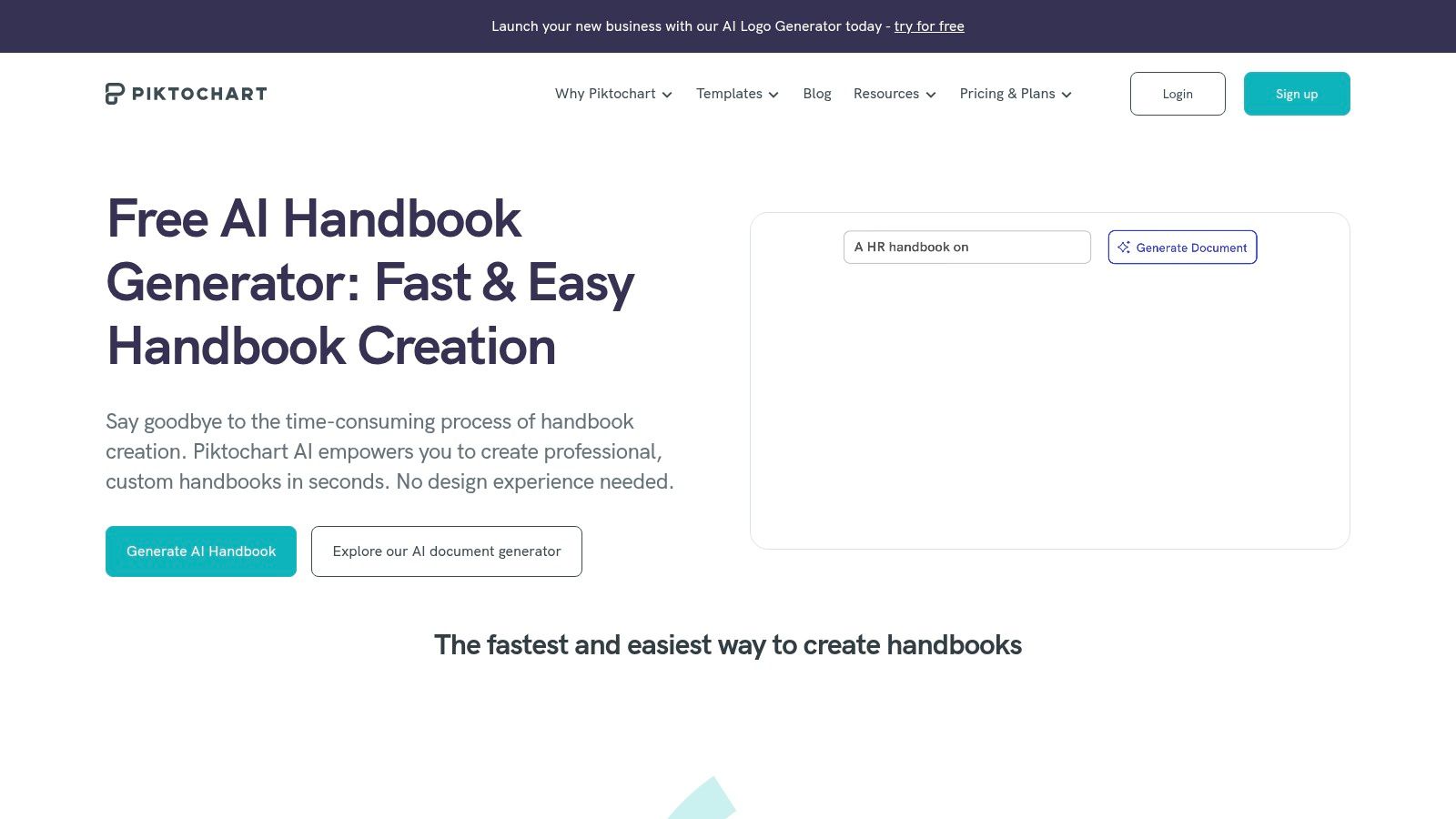
The primary advantage is the speed at which you can generate a polished design. The editor is straightforward, allowing for easy customization of colors, fonts, and logos to align with brand guidelines. This makes it ideal for producing quick reference guide templates for marketing materials, event handouts, or internal tips sheets that need to be visually appealing. Once complete, documents are easily exported as high-resolution PNG or PDF files suitable for both digital sharing and physical printing.
Key Features & Considerations
While Piktochart offers a free plan, access to its best templates and advanced features, like the AI generator and premium assets, may require a paid subscription. The editor prioritizes simplicity over granular control, so it may feel limited compared to professional desktop publishing software like Adobe InDesign. However, for most QRG purposes, the trade-off is well worth the efficiency gained.
Best For: Marketing teams, HR departments, and educators creating visually-driven, printable guides.
Access: Free plan available; paid subscriptions unlock AI tools, premium templates, and advanced export options.
Pros: Extremely fast for creating print-ready designs, low learning curve, supports brand asset integration.
Cons: Less layout control than professional design software, some features are behind a paywall.
Website: https://piktochart.com/ai-handbook-generator/
Top 12 Quick Reference Guide Template Tools Comparison
Tool | Core features | UX (★) | Price/Value (💰) | Target audience (👥) | Unique selling points (✨) |
|---|---|---|---|---|---|
🏆 Build a Guide | AI converts screen recordings → step-by-step SOPs; rich-text editor; publish to hubs; analytics | ★★★★★ | 💰💰 (contact for plans) | 👥 Support, CS, Ops, Agencies | ✨ Automated video→SOP; multi-hub management; engagement analytics |
Scribe | Automatic recorder; Quick Reference Guide templates; PDF/HTML/MD export | ★★★★ | 💰💰 (desktop capture on paid plans) | 👥 CS, Onboarding, Ops | ✨ Click-to-steps recorder for ultra-fast QRGs |
TechSmith Snagit | Step Capture; image-first templates; asset library; exports | ★★★★ | 💰💰 (one-time/paid) | 👥 Tech writers, Support | ✨ Fast screenshot‑centric one‑page guides |
Visme | QRG & cheat-sheet templates; brand kit; interactive/HTML5 exports | ★★★ | 💰💰💰 (advanced features paid) | 👥 Marketers, Designers | ✨ Branded, interactive one‑pagers and visual polish |
Venngage | Templates + AI Cheat Sheet Generator; brand kit; exports | ★★★ | 💰💰 (free limits; paid for downloads) | 👥 Non-designers, Marketing | ✨ AI-assisted layout & content generation |
Mural | Collaborative QRG board; real-time editing & comments; sharing | ★★★ | 💰💰 (team subscriptions) | 👥 Product, UX, Cross-functional teams | ✨ Live alignment boards for design & research QRGs |
Creately | Diagram + QRG starter layouts; flowchart integrations; exports | ★★★ | 💰 (affordable tiers) | 👥 Process owners, Ops | ✨ Diagrams + printable one‑page references |
Template.net | Editable Word quick reference templates; offline/print-ready | ★★ | 💰 (low-cost downloads) | 👥 Office-centric teams, Compliance | ✨ Fast Word-ready templates for enterprise docs |
Atlassian Confluence | How-to/troubleshooting templates; labels, versioning, permissions | ★★★★ | 💰💰 (team licenses) | 👥 Internal docs, IT, Ops | ✨ Governed living knowledge base with discoverability |
Adobe Express | Large template library; brand kit; Adobe integrations & stock | ★★★★ | 💰💰💰 (premium assets paid) | 👥 Marketers, Designers | ✨ Rapid branded layouts + Adobe ecosystem |
Miro | Interactive board templates; real-time collab; presentation frames | ★★★ | 💰💰 (team plans) | 👥 Workshops, Teams, Product | ✨ Workshop-friendly, living visual QRGs |
Piktochart | AI handbook/guide generator; infographics & one-pager templates | ★★★ | 💰💰 (premium for exports) | 👥 Non-designers, HR, Comms | ✨ AI-to-printable one‑pagers and infographics |
From Template to Transformation: Your Next Steps
We've explored a wide spectrum of tools, each offering a unique approach to creating quick reference guides. From the visual-first design suites like Visme and Adobe Express to the collaborative whiteboards of Miro and Mural, the options for crafting static, printable guides are plentiful. These platforms provide excellent starting points, giving you the creative freedom to design documents that are both informative and visually engaging. You can build anything from a simple keyboard shortcut list to a complex workflow diagram, tailoring the final product to your brand's specific aesthetic.
However, selecting a visually appealing design is only the first part of the equation. The real challenge, and where the most significant gains are found, lies in the guide's entire lifecycle. A static PDF downloaded from Template.net or a beautiful infographic created in Piktochart becomes outdated the moment a process changes. This creates a maintenance burden, where documentation quickly falls behind reality, leading to confusion and inefficiency. The core issue with traditional templates is that they are disconnected from the actual work they are meant to explain.
Shifting from Static Documents to Dynamic Systems
The most impactful change you can make to your documentation strategy is to move beyond static files and embrace a platform-based approach. Tools like Build a Guide and Scribe represent this fundamental shift. They don't just provide a canvas for you to manually build a guide; they automate the most tedious parts of the creation process itself. By capturing your actions as you perform a task, they generate step-by-step instructions, complete with screenshots and text, in a matter of seconds.
This changes the game entirely. Instead of spending hours taking screenshots, cropping them, and writing out each step, your team can produce a detailed guide in minutes. This speed and efficiency make it practical to document even minor processes, building a robust and truly helpful knowledge base. Furthermore, because these guides are housed within a central platform, updating them is simple. When a user interface changes, you can quickly recapture that part of the process without having to redesign the entire document from scratch. This ensures your quick reference guide templates evolve into living resources that are always accurate and trustworthy.
Key Factors for Choosing Your Path Forward
As you decide on the best tool for your organization, move past the surface-level features and consider the deeper operational impact. Ask yourself these critical questions:
Ease of Creation: How much time and effort does it take to create a single guide? Will your subject matter experts actually use the tool, or is it too complex?
Maintenance and Updates: What is the process for updating a guide when a workflow changes? Can you edit a single step, or do you need to recreate the entire document?
Accessibility and Distribution: How will your team access these guides? Are they buried in a shared drive, or are they easily searchable and available directly within the applications they use?
Engagement and Analytics: Can you track which guides are being used? Can you gather feedback to understand if the documentation is actually helpful?
For teams in customer success, operations, or HR, the ability to rapidly create, deploy, and measure the effectiveness of documentation is critical. While a tool like Snagit is excellent for ad-hoc annotations and Creately helps visualize complex systems, a dedicated guide-building platform offers an end-to-end solution for process documentation. It addresses not just the creation, but the entire lifecycle of a guide, ensuring your efforts lead to real, measurable improvements in consistency and performance. Your goal isn't just to create a document; it's to build a reliable system for knowledge sharing that scales with your team.
Ready to move beyond static templates and build a library of interactive, easy-to-update guides? Build a Guide automates the documentation process, turning your complex workflows into beautiful step-by-step guides in seconds. Stop spending hours on manual documentation and start creating resources that your team will actually use. Get started for free and see the difference at Build a Guide.